with ItemHierarchy (UniqueID, Name, ParentID, Path, Level) as
(
 select fol.UniqueID, fol.Name, fol.ParentID, CAST(fol.Name as varchar(max)), 0
 from FOLDERS fol
 where fol.ParentID IS NULL

 union all

 select fol.UniqueID, fol.Name, fol.ParentID, CAST(par.Path + '\' + fol.Name AS varchar(max)), par.Level + 1
 from FOLDERS fol
 inner join ItemHierarchy par on fol.ParentID = par.UniqueID
)
select pol.Name as 'PolicyName', ith.Name as 'FolderName', ith.Path as 'Folder Path'
from POLICIES pol
inner join ItemHierarchy ith on pol.ParentID = ith.UniqueID
where pol.Name like '%RunbookName%'
Showing posts with label Code. Show all posts
Showing posts with label Code. Show all posts
Thursday, September 26, 2019
SCORCH: Find runbook in folder structure
When you know a runbook exists but you can't find the folder it resides in, you can try this SQL query.
To retrieve the complete path from the root of the folder structure down to the runbook, i used a Common Table Expression (CTE).
It works like a recursive function.


Thursday, January 18, 2018
SCCM - Download Software Updates with PowerShell
After you setup your new SCCM environment, it can be time consuming to download all Software Updates and place them in the right deployment package.
This is an example of how you could automate that with PowerShell.
It will download all software updates contained in the given Software Update Group and will save and download them to an already created deployment package.
$sugDeployment = "Deployment Group - 2017 - Microsoft Updates - Non-OS"
$dpkg = "Deployment Package - 2017 - Microsoft Updates - Non-OS"
$supLanguages = @("English","Dutch")
Get-CMSoftwareUpdateGroup -Name $sugDeployment | Save-CMSoftwareUpdate -DeploymentPackageName $dpkg -Verbose -SoftwareUpdateLanguage $supLanguages
Creating a deployment package with PowerShell is also possible, but remember you need to create the path on the filesystem yourself.
Thursday, December 14, 2017
PowerShell: Encapsulate 64 bit cmdlet in a 32 bit context
Found a rather old but nice tip from Neil Peterson to tackle a challenge executing Powershell 64 bit cmdlets from a 32 bit execution context (Orchestrator in his example).
Just wanted to share this and add it to my own blog for enhancing my toolbox.
#living in a 32 bit universe

#starting PowerShell 'sysnative' version and thus 64 bit
#more info: https://msdn.microsoft.com/en-us/library/windows/desktop/aa384187(v=vs.85).aspx

$ClusterNodes = .$env:windir\sysnative\WindowsPowerShell\v1.0\powershell.exe {

 #living in a 64 bit universe
 Get-ClusterNode -Cluster clustername

}
Monday, May 30, 2016
SCOM: View Folder Path hierarchy (PowerShell)
So we're six years older and still there was a small thing that I still had not fixed.
It concerned the full view folder path of a SCOM Monitoring View.
In the past I wrote numerous PowerShell scripts which involved the views. Now I finally found some time to create a function to get the folder hierarchy of a given View by it's ID (guid).
Why I never thought about solving it like this, i don't know, but it appeared to be not that hard. It's a simple recursive function.
In the future I'll update the existing scripts concerning the User Scopes and will also upload a nice script which shows a complete report about all the dependancies between Management Packs and their objects used in User Roles and Notifications. This comes in handy, when you want to phase out management packs but don't know whether there are User Roles and Notification Subscriptions involved.
Enjoy.
In the past I wrote numerous PowerShell scripts which involved the views. Now I finally found some time to create a function to get the folder hierarchy of a given View by it's ID (guid).
Why I never thought about solving it like this, i don't know, but it appeared to be not that hard. It's a simple recursive function.
In the future I'll update the existing scripts concerning the User Scopes and will also upload a nice script which shows a complete report about all the dependancies between Management Packs and their objects used in User Roles and Notifications. This comes in handy, when you want to phase out management packs but don't know whether there are User Roles and Notification Subscriptions involved.
Enjoy.
- $computerName should have a name of a valid Management Server
- $viewId needs to have a valid guid of an existing view in your SCOM environment.
New-SCOMManagementGroupConnection -ComputerName $computerName
$mg = Get-SCOMManagementGroup

function GetFolderHierarchy($folderId,$folderpath) {

    $parentfolderid = $null
    $tmpfolder = $mg.GetMonitoringFolder($folderId)
    $tmpfolderdisplayname = $tmpfolder.DisplayName

    if ($folderpath -eq "" -Or $folderpath -eq $null) {
        $folderpath = $tmpfolderdisplayname
    } else {
        $folderpath = $tmpfolderdisplayname + "\" + $folderpath
    }

    $parentfolderid = $tmpfolder.ParentFolder.id.Guid

    if ($parentfolderid -ne "" -And $parentfolderid -ne $null -And $tmpfolder.name -ne "Microsoft.SystemCenter.Monitoring.ViewFolder.Root") {
        GetFolderHierarchy $parentfolderid $folderpath
    } else {
        return $folderpath
    }

}

function GetViewHierarchy($viewId) {

    $tmpview = $mg.GetMonitoringView($viewId)
    $parentfolderid = $tmpview.ParentFolderIds.Guid | Select -First 1
    if($parentfolderid -ne "" -And $parentfolderid -ne $null) {
        $fullpath = GetFolderHierarchy $parentfolderid
        return $fullpath + "\" + $tmpview.DisplayName
    }
}

GetViewHierarchy $viewId
Tuesday, November 11, 2014
Powershell: Searching for special characters? Get them all!
Today I wanted to see if I could add a checkbox like character to a custom table from Powershell.
Because of the nature of a command line script, I wanted to see if there were any interesting character codes to do this.
In Powershell you can use specific characters with the command [char]#.
You can use this command line to output all characters from a specific range (default is 0-10000). Have fun!
Output looks like this:
Because of the nature of a command line script, I wanted to see if there were any interesting character codes to do this.
In Powershell you can use specific characters with the command [char]#.
You can use this command line to output all characters from a specific range (default is 0-10000). Have fun!
for($i=0;$i -le 10000;$i++){Write-Host -NoNewLine "$i $([char]$i) "; $k++ ; if($k -ge 15){Write-Host "";$k=0}}
Output looks like this:
9819 ♛ 9820 ♜ 9821 ♝ 9822 ♞ 9823 ♟ 9824 ♠ 9825 ♡ 9826 ♢ 9827 ♣ 9828 ♤ 9829 ♥ 9830 ♦ 9831 ♧ 9832 ♨ 9833 ♩
9834 ♪ 9835 ♫ 9836 ♬ 9837 ♭ 9838 ♮ 9839 ♯ 9840 ♰ 9841 ♱ 9842 ♲ 9843 ♳ 9844 ♴ 9845 ♵ 9846 ♶ 9847 ♷ 9848 ♸
9849 ♹ 9850 ♺ 9851 ♻ 9852 ♼ 9853 ♽ 9854 ♾ 9855 ♿ 9856 ⚀ 9857 ⚁ 9858 ⚂ 9859 ⚃ 9860 ⚄ 9861 ⚅ 9862 ⚆ 9863 ⚇
9864 ⚈ 9865 ⚉ 9866 ⚊ 9867 ⚋ 9868 ⚌ 9869 ⚍ 9870 ⚎ 9871 ⚏ 9872 ⚐ 9873 ⚑ 9874 ⚒ 9875 ⚓ 9876 ⚔ 9877 ⚕ 9878 ⚖
9879 ⚗ 9880 ⚘ 9881 ⚙ 9882 ⚚ 9883 ⚛ 9884 ⚜ 9885 ⚝ 9886 ⚞ 9887 ⚟ 9888 ⚠ 9889 ⚡ 9890 ⚢ 9891 ⚣ 9892 ⚤ 9893 ⚥
9894 ⚦ 9895 ⚧ 9896 ⚨ 9897 ⚩ 9898 ⚪ 9899 ⚫ 9900 ⚬ 9901 ⚭ 9902 ⚮ 9903 ⚯ 9904 ⚰ 9905 ⚱ 9906 ⚲ 9907 ⚳ 9908 ⚴
9909 ⚵ 9910 ⚶ 9911 ⚷ 9912 ⚸ 9913 ⚹ 9914 ⚺ 9915 ⚻ 9916 ⚼ 9917 ⚽ 9918 ⚾ 9919 ⚿ 9920 ⛀ 9921 ⛁ 9922 ⛂ 9923 ⛃
9924 ⛄ 9925 ⛅ 9926 ⛆ 9927 ⛇ 9928 ⛈ 9929 ⛉ 9930 ⛊ 9931 ⛋ 9932 ⛌ 9933 ⛍ 9934 ⛎ 9935 ⛏ 9936 ⛐ 9937 ⛑ 9938 ⛒
9939 ⛓ 9940 ⛔ 9941 ⛕ 9942 ⛖ 9943 ⛗ 9944 ⛘ 9945 ⛙ 9946 ⛚ 9947 ⛛ 9948 ⛜ 9949 ⛝ 9950 ⛞ 9951 ⛟ 9952 ⛠ 9953 ⛡
9954 ⛢ 9955 ⛣ 9956 ⛤ 9957 ⛥ 9958 ⛦ 9959 ⛧ 9960 ⛨ 9961 ⛩ 9962 ⛪ 9963 ⛫ 9964 ⛬ 9965 ⛭ 9966 ⛮ 9967 ⛯ 9968 ⛰
9969 ⛱ 9970 ⛲ 9971 ⛳ 9972 ⛴ 9973 ⛵ 9974 ⛶ 9975 ⛷ 9976 ⛸ 9977 ⛹ 9978 ⛺ 9979 ⛻ 9980 ⛼ 9981 ⛽ 9982 ⛾ 9983 ⛿
9984 ✀ 9985 ✁ 9986 ✂ 9987 ✃ 9988 ✄ 9989 ✅ 9990 ✆ 9991 ✇ 9992 ✈ 9993 ✉ 9994 ✊ 9995 ✋ 9996 ✌ 9997 ✍ 9998 ✎
9999 ✏ 10000 ✐
Friday, August 2, 2013
SCOM: Invoke method on cross-platform agents with PowerShell
In this post i'll show you how a cross-platform agent can be tested. This is something which Daniele Muscetta already found out. But I also wanted to know how I could troubleshoot cross-platform agents, to test, for example, why a specific workflow like 'run a ssh command' would not work from a management pack. And yes, PowerShell can be used for that, with the Invoke-WSManAction cmdlet.
About Cross-Platform Agents
For those who ever have worked with the cross-platform agents in SCOM, you probably know that they work different than the Windows agents.
Where Windows Agents run their workflows locally on the client, the workflows for cross-platform/xplat agents are ran from the Management Servers.
Windows systems support different ways of remote connecting, not present in cross-platform systems. Cross-platform agents are actually listeners based on WS-Man, Web Services-Management. This makes use of a SOAP-based protocol.
When the Management Server starts a workflow, it connects to the cross-platform agent through WS-Man. It retrieves the required information and processes the returned information.
Connecting with cross-platform agents
I'll won't copy the post of Daniele Muscetta here. These are the main requirements when connecting from any client other than a management server. If you don't use this option, you'll have to add the agent to the trusted hosts list of the WS-Man client on the computer you are working on and allow unencrypted traffic.
To test a cross-platform agent with PowerShell I use the following cmdlets:


About Cross-Platform Agents
For those who ever have worked with the cross-platform agents in SCOM, you probably know that they work different than the Windows agents.
Where Windows Agents run their workflows locally on the client, the workflows for cross-platform/xplat agents are ran from the Management Servers.
Windows systems support different ways of remote connecting, not present in cross-platform systems. Cross-platform agents are actually listeners based on WS-Man, Web Services-Management. This makes use of a SOAP-based protocol.
When the Management Server starts a workflow, it connects to the cross-platform agent through WS-Man. It retrieves the required information and processes the returned information.
Connecting with cross-platform agents
I'll won't copy the post of Daniele Muscetta here. These are the main requirements when connecting from any client other than a management server. If you don't use this option, you'll have to add the agent to the trusted hosts list of the WS-Man client on the computer you are working on and allow unencrypted traffic.
- Connecting over SSL
- Download the agent's certificate (which is signed by the management server) with SCP (use WinSCP or FileZilla)
- Rename to .cer
- Open this certificate on the management server which installed the agent. This is because this server signed the certificate.
- Open the details tab, get the Root CA certificate, export it to a .cer file
- Add certificate to Trusted Root Certificate Authorities on your workstation's computer certificate store.
Or
- Untrusted connection (by default disabled for the WS-Man Windows client)
- Open Powershell (as Administrator)
- Enter: set-item WSMan:\localhost\Client\AllowUnencrypted "true"
- Enter: set-item WSMan:\localhost\Client\TrustedHosts "
"
Time to play
- Test-WSMan - Test whether a connection can be made
- Invoke-WSMan - Invoke an action that is accepted by the agent
Test-WSMan -computer linuxhost.contoso.local -port 1270 -authentication basic -credential (Get-Credential) -UseSSL

The output of the command is show above. The cmdlet shows the properties of the Cross-Platform agent.
Invoke-WSManAction -Action ExecuteCommand -Authentication Basic -ComputerName "linuxhost.contoso.local" -Credential (Get-Credential) -Port 1270 -ResourceURI http://schemas.microsoft.com/wbem/wscim/1/cim-schema/2/SCX_OperatingSystem?__cimnamespace=root/scx -UseSSL -ValueSet @{command="uname -a";timeout=30}
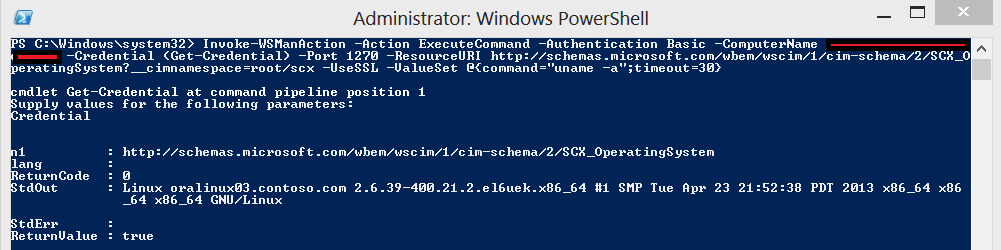
In this example I invoke the action "ExecuteCommand". For this cmdlet to work you need to add a ValueSet. These are the arguments for the ExecuteCommand method. I found the right syntax by trial and error. The need to be entered as a hashtable.
In this case, the arguments are 'command' and 'timeout'.
Technical documentaton about the Methods and the necessary arguments: http://technet.microsoft.com/en-us/library/dd789056.aspx. (not the best documented features sadly).
You can also take a look at the MP library: Microsoft.Unix.Library.mp
In this case, the arguments are 'command' and 'timeout'.
Technical documentaton about the Methods and the necessary arguments: http://technet.microsoft.com/en-us/library/dd789056.aspx. (not the best documented features sadly).
You can also take a look at the MP library: Microsoft.Unix.Library.mp
Links
Tuesday, May 22, 2012
Powershell: Split text file in multiple files
For importing computer entries in SCCM I had a rather big file with 35000 items in it. I wanted to take a phased approach and found a script to split the CSV file based on a number of lines per file. Script Center repository: http://gallery.technet.microsoft.com/scriptcenter/PowerShell-Split-large-log-6f2c4da0
I tweaked the script a little bit, so only the parameters that are necessary are File Name and Number of Lines Per File.
I tweaked the script a little bit, so only the parameters that are necessary are File Name and Number of Lines Per File.
$linecount = 0
$filenumber = 1

$sourcefilename = Read-Host "What is the full path and name of the log file to split? (e.g. D:\mylogfiles\mylog.txt) "
$destinationfolderpath = Split-Path $sourcefilename -parent

$srcfile = gci $sourcefilename
$filebasename = $srcfile.BaseName
$fileext = $srcfile.Extension

Get-Content $sourcefilename | Measure-Object | ForEach-Object { $sourcelinecount = $_.Count }

Write-Host "Your current file size is $sourcelinecount lines long"

$destinationfilesize = Read-Host "How many lines will be in each new split file? "

$maxsize = [int]$destinationfilesize

Write-Host File is $sourcefilename - destination is $destinationfolderpath - new file line count will be $destinationfilesize

Write-Host "Writing part: $destinationfolderpath\$filebasename`_part$filenumber$fileext"
$content = get-content $sourcefilename | % {
 #Add-Content $destinationfolderpath\$filebasename_$filenumber.txt "$_"
 Add-Content $destinationfolderpath\$filebasename`_part$filenumber$fileext "$_"
  $linecount ++
  If ($linecount -eq $maxsize) {
    $filenumber++
    $linecount = 0
    Write-Host "Writing part: $destinationfolderpath\$filebasename`_part$filenumber$fileext"
  }
}
Tuesday, August 16, 2011
SCCM: Get Drivers From Driver Packages (WQL)
I was searching for a way to list Driver Packages which contain Drivers. Why? I want to use Driver Packages without importing the drivers in SCCM.
Why? You can read about that here: http://hayesjupe.wordpress.com/sccm-osd-driver-best-practices/
I found an interesting script of Christjan which can detect differences in drivers between Driver Packages. The script contained the necessary WQL statements that I needed.
Here's the link to his script:
http://pr3m.pri.ee/blog/?p=653
Example WQL query for displaying the PackageID and Name of Driver Packages that contain drivers:
Why? You can read about that here: http://hayesjupe.wordpress.com/sccm-osd-driver-best-practices/
I found an interesting script of Christjan which can detect differences in drivers between Driver Packages. The script contained the necessary WQL statements that I needed.
Here's the link to his script:
http://pr3m.pri.ee/blog/?p=653
Example WQL query for displaying the PackageID and Name of Driver Packages that contain drivers:
SELECT DPKG.Name,DPKG.PackageID FROM SMS_PackageToContent AS PTC

JOIN SMS_CIToContent AS CITC ON PTC.ContentUniqueID=CITC.ContentUniqueID

JOIN SMS_Driver AS DRV ON CITC.CI_ID=DRV.CI_ID

JOIN SMS_DriverPackage AS DPKG ON PTC.PackageID = DPKG.PackageID
Wednesday, May 25, 2011
SCOM: Small edit for SCC Logical Disk Extension Management Pack
This blog post is about the SCC Logical Disk Extension Management Pack.
This MP is a real nice example of a combined forces from the System Center community. It contains some extra Logical Disk collection rules and two Logical Disk reports.
Using the MP is pretty simple, but i noticed two small things.
The parameter list to select a Computer Group is not sorted. Finding the right group between more that 300 groups can be a hassle. And after generating a report the Computer Group name is shown. But as many groups are created through the Operations Console, a Display Name would be nicer.
To change this I modified the RDL file directly and notified the creators of this MP. Remember that this is not the standard method for editing SCOM reports.
For sorting the computer groups...
I changed:
I changed:
This MP is a real nice example of a combined forces from the System Center community. It contains some extra Logical Disk collection rules and two Logical Disk reports.
Using the MP is pretty simple, but i noticed two small things.
The parameter list to select a Computer Group is not sorted. Finding the right group between more that 300 groups can be a hassle. And after generating a report the Computer Group name is shown. But as many groups are created through the Operations Console, a Display Name would be nicer.
To change this I modified the RDL file directly and notified the creators of this MP. Remember that this is not the standard method for editing SCOM reports.
For sorting the computer groups...
I changed:
SELECT FullName, DisplayNameTo:
FROM OperationsManagerDW.dbo.vManagedEntity with (nolock) where Path is null and FullName not like '%:%' and DisplayName like '%Computer%'
SELECT FullName, DisplayNameAnd for the table footer...
FROM OperationsManagerDW.dbo.vManagedEntity with (nolock) where Path is null and FullName not like '%:%' and DisplayName like '%Computer%'
ORDER BY DisplayName
I changed:
<value>=Parameters!Group.Value</value></textbox>To:
<value>=Parameters!Group.Label</value></textbox>I you want, you can download the RDL file here: https://sites.google.com/site/systemcentertechblogresources/scripts/Windows.LogicalDrives.FreeSpace.Report_MichielWouters_1.0.rdl?attredirects=0&d=1
SCOM: Get Overrides from Management Pack
Here's an example of how to retrieve all overrides from a specific management pack and get additional information about the overriden rule and override context.
Get-ManagementPack | Where {$_.DisplayName -match "Your Management Pack"} | Get-Override | % {Get-Rule -Id $_.Rule.Id | Select DisplayName
; Get-MonitoringClass -Id $_.Context.Id; Write-Host $_.Parameter: $_.Value}
To manage all your overrides you could use a tool like OverrideExplorer.
Thursday, February 17, 2011
SCOM: Account specified in the Run As Profile cannot be resolved - Troubleshooting using SSID
Update for SCOM 2012:
SCOM 2012 does have a cmdlet for getting RunAs profiles: Get-SCOMRunAsProfile.
As one of the commenters below added, if you want to get the SSID's in SCOM 2012, then use the cmdlet 'Get-SCOMRunAsAccount'.
Written for SCOM 2007...
Update:
Some management packs require configuration of Run As Profiles.
This means that you configure associations between classes/objects and Run As Accounts. Whenever a workflow from a management pack is instructed to use a Run As Profile it will only work when the targeted class or object of the workflow is associated with an account. And last but not least, the Run As Account should be distributed to the servers on which that class exists.
This blogs shows you some tips on how to troubleshoot alerts associated with these kind of things.
When you misconfigure the Run As Profile, the following alert can popup in your console:
Account specified in the Run As Profile ">RunasAccountProfile<" cannot be resolved.
With some extra info:
Management Group: ###
Run As Profile: Company.Product.Role.Application.ActionAccountProfile
Account SSID: 0025F224C5251A6F4EEE112ACD9F0EB07D9178AFB500000000000000000000000000000000000000
This alert tells you that you associated the runas account, but the agent that tries to use the account, did not actually receive the account credentials.
So either you add the server to the distribution list, or you reconfigure the runas profile associations with beter classes/objects.
But he! I can't find the specified Run As Profile 'Company.Product.Role.Application.ActionAccountProfile'. That's right. That's the Name property shown in the description. If you want to find the Run As Profile as it's showed in the Operations Console, you will need the DisplayName. For that we could use the Operations Manager Shell:
What more does the alert message say? This is interesting:
Note: you may use the command shell to get the Run As Account display name by its SSID"
We could use the SSID from the alert message. The Ops Mgr Shell does have a cmdlet for showing the Run As Accounts.
The only problem we have here, is that the SSID mentioned in the alert description is a string type value. Cmdlet Get-RunAsAccount shows us that the SSID is stored as a byte array in the property SecureStorageId. So we can't compare these types.
For that i've created this script. It gets all Run As Account, formats the byte array SecureStorageId property to a readable string, and show the Run As Account DisplayName with it's SSID.
PowerShell does not have built-in functions for formatting numbers, therefore you can use the .Net formatting methods.
With this in mind you could add a string comparison to only show a match when the Alert Message SSID correspands with the SecureStorageId string ($string).
If you need help with that, leave a message.
Get-SCOMRunAsAccount | Sort Name | % {$string = $null;$_.SecureStorageId | % {
 $string = $string + "{0:X2}" -f $_}
 $_.Name;" $string"
}
Written for SCOM 2007...
Update:
#Don't forget to add the OM2007 snapin
add-PsSnapIn "Microsoft.EnterpriseManagement.OperationsManager.Client"
New-ManagementGroupConnection -ConnectionString:"scommssrv"
set-location "OperationsManagerMonitoring::"
Some management packs require configuration of Run As Profiles.
This means that you configure associations between classes/objects and Run As Accounts. Whenever a workflow from a management pack is instructed to use a Run As Profile it will only work when the targeted class or object of the workflow is associated with an account. And last but not least, the Run As Account should be distributed to the servers on which that class exists.
This blogs shows you some tips on how to troubleshoot alerts associated with these kind of things.
When you misconfigure the Run As Profile, the following alert can popup in your console:
Account specified in the Run As Profile ">RunasAccountProfile<" cannot be resolved.
With some extra info:
Management Group: ###
Run As Profile: Company.Product.Role.Application.ActionAccountProfile
Account SSID: 0025F224C5251A6F4EEE112ACD9F0EB07D9178AFB500000000000000000000000000000000000000
This alert tells you that you associated the runas account, but the agent that tries to use the account, did not actually receive the account credentials.
So either you add the server to the distribution list, or you reconfigure the runas profile associations with beter classes/objects.
But he! I can't find the specified Run As Profile 'Company.Product.Role.Application.ActionAccountProfile'. That's right. That's the Name property shown in the description. If you want to find the Run As Profile as it's showed in the Operations Console, you will need the DisplayName. For that we could use the Operations Manager Shell:
Get-RunAsProfile ... oh, that cmdlet does not exist :(
What more does the alert message say? This is interesting:
Note: you may use the command shell to get the Run As Account display name by its SSID"
We could use the SSID from the alert message. The Ops Mgr Shell does have a cmdlet for showing the Run As Accounts.
The only problem we have here, is that the SSID mentioned in the alert description is a string type value. Cmdlet Get-RunAsAccount shows us that the SSID is stored as a byte array in the property SecureStorageId. So we can't compare these types.
For that i've created this script. It gets all Run As Account, formats the byte array SecureStorageId property to a readable string, and show the Run As Account DisplayName with it's SSID.
Get-RunAsAccount | Sort Name | % {$string = $null;$_.SecureStorageId | % {
 $string = $string + "{0:X2}" -f $_}
 $_.Name;"  $string"
}
PowerShell does not have built-in functions for formatting numbers, therefore you can use the .Net formatting methods.
With this in mind you could add a string comparison to only show a match when the Alert Message SSID correspands with the SecureStorageId string ($string).
If you need help with that, leave a message.
Monday, February 7, 2011
SCOM: Find Notification Subscriptions for Subscriber
What to do when you want to delete a subscriber in SCOM, but you can't because get an error like this:
The notification recipient is subscribed to at least one notification subscription.
Please remove it from all notification subscriptions before deleting it.
.....cannot be deleted as its currently in use.
To solve this you would have to browse manually through all your notification subscriptions. But how much time would that take.
With this PowerShell script it takes 2 seconds!
The notification recipient is subscribed to at least one notification subscription.
Please remove it from all notification subscriptions before deleting it.
.....cannot be deleted as its currently in use.
To solve this you would have to browse manually through all your notification subscriptions. But how much time would that take.
With this PowerShell script it takes 2 seconds!
Get-NotificationSubscription | foreach {
 $ns = $_.DisplayName
 $_.ToRecipients | foreach {
  If ($_.Name -match "John") {
   Write-Host $ns
  }
 }
}
Thursday, December 9, 2010
SCOM: Find Specific Members in User Roles (PowerShell)
Last week I was doing some User Role testing with a test account of mine. Normally I always use Active Directory groups for adding and removing members of a user role.
But for quick testing with some views I added my test account directly to several user roles.
I wanted to know in which user roles my test account was added.
Beneath is a PowerShell script to find members of a user role which name contains the given search criteria. The name is usually a (AD) User Account or Group, like Admin1234@domain.local or DOMAIN\Admin123.
But for quick testing with some views I added my test account directly to several user roles.
I wanted to know in which user roles my test account was added.
Beneath is a PowerShell script to find members of a user role which name contains the given search criteria. The name is usually a (AD) User Account or Group, like Admin1234@domain.local or DOMAIN\Admin123.
#Find member of userrole which contains a specific text
#The search criteria is case-sensitive

$searchtext = "Admin"
Get-Userrole | Sort DisplayName | % { $userrole = $_.DisplayName;$_.Users | % { If($_.Contains("$searchtext")){ Write-Host -foregroundcolor yellow $userrole;Write-Host "  $_"} }}
Wednesday, December 8, 2010
SCOM: Get Nested Group Members (Powershell)
When you create nested groups in SCOM you have to use workarounds to view the actual group members of a specific type, e.g. Windows Computer. Using 'View Members' only returns the nested groups and not the contained objects.
One of the ways to view the actual members of a group, is to create a 'State View'.
As a "filter" you then change the class type to show the data related to the type you want to see and then you select the group for scoping the returned data.
So in short terms, to view the nested group members
- Create a state view
- Change "Show data related to" to a class like 'Windows Computer'
- Change "Show data contained in a specific group" to the group of which you want the members.
But, there's quicker way to achieve this. Using Powershell you can retrieve the members of a nested group in a couple of seconds. I found out about 'Recursive' using the SCOM SDK.
One of the ways to view the actual members of a group, is to create a 'State View'.
As a "filter" you then change the class type to show the data related to the type you want to see and then you select the group for scoping the returned data.
So in short terms, to view the nested group members
- Create a state view
- Change "Show data related to" to a class like 'Windows Computer'
- Change "Show data contained in a specific group" to the group of which you want the members.
But, there's quicker way to achieve this. Using Powershell you can retrieve the members of a nested group in a couple of seconds. I found out about 'Recursive' using the SCOM SDK.
$group = Get-MonitoringObject | Where { $_.DisplayName -eq "YourGroupName"}
$MonitoringClass = Get-MonitoringClass -Name "Microsoft.Windows.Computer"
$group.GetRelatedMonitoringObjects($MonitoringClass,"Recursive") | Select DisplayName
Wednesday, September 29, 2010
SCOM: Recipient address not valid - Find with PowerShell
One of the benefits of Operations Manager 2007 is the capability for users to create and maintain their own subscription notifications.
When a user adds a notification device to there recipient configuration, it's easy to make a small mistake. Whenever the Notifcation Server on the RMS trying to send a notification to a misconfigured address an alert is triggered, "Recipient address <address> is not valid."
The alert description shows in which subscription this address is used, but it's more important to know in which recipient this address can be found.
For that you can use this PowerShell script:
When a user adds a notification device to there recipient configuration, it's easy to make a small mistake. Whenever the Notifcation Server on the RMS trying to send a notification to a misconfigured address an alert is triggered, "Recipient address <address> is not valid."
The alert description shows in which subscription this address is used, but it's more important to know in which recipient this address can be found.
For that you can use this PowerShell script:
$searchcriteria = "yourtext"As a one-liner:
Get-NotificationRecipient | foreach {
$addresses = $null;
$subname = $null;
$subname = $_.Name;
$addresses = $_.Devices | Where {
$_.Address -match $searchcriteria
}
if ($addresses -ne $null) {
Write-Host '***' $subname '***'; $addresses
}
}
$searchcriteria = "yourtext";Get-NotificationRecipient | foreach {$addresses = $null;$subname=$null;$subname = $_.Name;$addresses = $_.Devices | Where {$_.Address -match $searchcriteria }; if ($addresses -ne $null) { Write-Host '***' $subname '***'; $addresses}}
Thursday, July 1, 2010
SCOM: Find those heavy group discoveries
Two days ago on the 'The Operations Manager Support Team Blog' a blog was posted about editing Groups and the slow Operation Manager Console. They advise to consolidate the number of membershiprules and expressions in regular expression.
But how do you know which groups are eligable for a consolidation? Well, for that I created this script.
It retrieves groups that comply with the given user input for the 'DisplayName'. For every group the Discovery information is retrieved. If the Discovery Configuration matches the prededined thresholds for the number of MembershipRules and/or Expressions, the output will be in red. Otherwise it will be in green. The threshold can be changed at will.
Download: ShowGroupDiscoveryDatasourceConfiguration.ps1
But how do you know which groups are eligable for a consolidation? Well, for that I created this script.
It retrieves groups that comply with the given user input for the 'DisplayName'. For every group the Discovery information is retrieved. If the Discovery Configuration matches the prededined thresholds for the number of MembershipRules and/or Expressions, the output will be in red. Otherwise it will be in green. The threshold can be changed at will.
Download: ShowGroupDiscoveryDatasourceConfiguration.ps1
#User-input only works from within a script!(ps. Save it as a script to use interactive User Input.)
$strGroup = Read-Host "Enter a group discovery name (wildcard) string";
$intMembershipRuleThreshold = 3;
$intMembershipRuleExpressionThreshold = 5;
$intMembershipRuleCount = 0;
$intMembershipRuleExpressionCount = 0;
#These Id's are the base Id's which are usually used when creating groups
$strInstanceGroupBaseClassId = "4ce499f1-0298-83fe-7740-7a0fbc8e2449" #Instance group
$strComputerGroupBaseClassId = "0c363342-717b-5471-3aa5-9de3df073f2a" #Computer group
Write-Host "Retrieving class that match:" $strGroup;
$colGroups = Get-MonitoringClass | where {$_.DisplayName -match "$strGroup" -and $_.Base -ne $null} | Sort-Object -Property DisplayName
if ($colGroups -ne $null) {
$colGroups | foreach {
If (($_.Base.Id.ToString() -eq $strInstanceGroupBaseClassId) -Or ($_.Base.Id.ToString() -eq $strComputerGroupBaseClassId)){
Write-Host "Class:" $_.DisplayName;
$colDiscoveries = $_.GetMonitoringDiscoveries();
#check if discoveries exist
If ($colDiscoveries.Count -ne 0) {
$colDiscoveries | foreach {
Write-Host " Discovery:";
$config = [xml] ("" + $_.DataSource.Configuration + " ");
#check wether Discovery uses membership rules
$intMembershipRuleCount = $config.GetElementsByTagName("MembershipRule").Count;
If($intMembershipRuleCount -gt 0){
If ($intMembershipRuleCount -ge $intMembershipRuleThreshold){
Write-Host " MembershipRules:" $intMembershipRuleCount -ForeGroundColor red;
} else {
Write-Host " MembershipRules:" $intMembershipRuleCount -ForeGroundColor green;
}
$intIndex = 0;
$config.config.MembershipRules.MembershipRule | %{
$intIndex++;
$intMembershipRuleExpressionCount = $_.GetElementsByTagName("Expression").Count;
If ($intMembershipRuleExpressionCount -gt 0) {
Write-Host " Membership Rule #$intIndex";
If ($intMembershipRuleExpressionCount -ge $intMembershipRuleExpressionThreshold){
Write-Host " Expression count:" $intMembershipRuleExpressionCount -ForeGroundColor red;
} else {
Write-Host " Expression count:" $intMembershipRuleExpressionCount -ForeGroundColor green;
}
}
$intMembershipRuleExpressionCount = 0;
}
}
$config = $null;
$intMembershipRuleCount = 0;
}
}
}
}
}
Tuesday, June 29, 2010
SCOM: Agent Queue Size Script
A while ago I needed a script to adjust the SCOM Agent Queue size to make sure no auditing events were lost in case of a link failure between DC's and OpsMgr MS's.
So I created this script to do this for me.
If supports launching it from a Agent Task . The script gives a return code and quits before restarting the Health Service with a scheduled job, using 'at'.
So I created this script to do this for me.
If supports launching it from a Agent Task . The script gives a return code and quits before restarting the Health Service with a scheduled job, using 'at'.
Option Explicit
SetLocale("en-us")

Dim blnForceRestart
Dim lngValue
Dim strComputer
Dim strManagementGroup

Const HKEY_LOCAL_MACHINE = &H80000002
blnForceRestart = False
strComputer = "."


Call Main


Sub Main()

 Call GetParams()
 WScript.Echo "Executing " & WScript.ScriptName
 Call RegChange()

End Sub


Sub RegChange()
 Dim objReg
 Dim lngCurrentValue
 Dim strKeyPath
 Dim strValueName

 Set objReg = GetObject("winmgmts:\\" & strComputer &"\root\default:StdRegProv")
 strKeyPath = "SYSTEM\CurrentControlSet\Services\HealthService\Parameters\Management Groups\" & strManagementGroup
 strValueName = "MaximumQueueSizeKb"

 objReg.GetDWORDValue HKEY_LOCAL_MACHINE, strKeyPath, strValueName, lngCurrentValue

 If IsNull(lngCurrentValue) Then
  WScript.Echo "An error occured while reading registry key."
  WScript.Quit 201
 End If

 If CLng(lngCurrentValue) <> lngValue Then
  objReg.SetDWORDValue HKEY_LOCAL_MACHINE, strKeyPath, strValueName, lngValue
  WScript.Echo strValueName & ": " & lngCurrentValue & " changed to " & lngValue
  Call ScheduleRestartHealthService()
 Else
  WScript.Echo "Current value '" & lngCurrentValue & "' matches parameter value: " & lngValue
  If blnForceRestart Then
   WScript.Echo "Restart of HealthService forced."
   Call ScheduleRestartHealthService()
  End If
 End If
End Sub


Sub ScheduleRestartHealthService()
 Dim dtmTime
 Dim dtmScheduleTime
 Dim objShell
 Dim intMinutesDelay
 Dim intReturn

 Set objShell = CreateObject("Wscript.Shell")
 dtmTime = Now()
 If Second(dtmTime) < 50 Then
  intMinutesDelay = 1
 Else
   intMinutesDelay = 2
 End If
 dtmScheduleTime = FormatDateTime(DateAdd("n",intMinutesDelay,dtmTime),4)
 WScript.Echo "Scheduling a HealthService restart for " & dtmScheduleTime
 intReturn = objShell.Run("at " & dtmScheduleTime & " cmd /c " & Chr(34) &_
   "net stop healthservice && net start healthservice",0,False)
 If intReturn > 0 Then WScript.Quit Clng(intReturn + 500)
End Sub

Sub GetParams()
 If Wscript.Arguments.Named("mgmtgrp") <> "" Then
  strManagementGroup = Wscript.Arguments.Named("mgmtgrp")
 Else
  WScript.Echo "Missing 'mgmtgrp' argument"
  WScript.Quit 101
 End If

 If WScript.Arguments.Named("sizekb") <> "" Then
  lngValue = CLng(WScript.Arguments.Named("sizekb"))
 Else
  lngValue = 15360 'Default value
  WScript.Echo "Using default Queue Size, " & lngValue & " kB."
 End If

 If WScript.Arguments.Named.Exists("forcerestart") Then
  blnForceRestart = True
 End If
End Sub
Friday, June 4, 2010
SCOM: Get-UserRole Views (PowerShell)
Currently I'm working on a OpsMgr Shell script to output the allowed Views for User Roles.
Current status: Working from User Role perspective to output views. Too bad, the folder hierarchy has to build from another perspective. There's a challenge!
Current status: Working from User Role perspective to output views. Too bad, the folder hierarchy has to build from another perspective. There's a challenge!
$mgmtgrp = (Get-ManagementGroupConnection).ManagementGroupGet-UserRole | Select -First 1 | foreach { If($_.IsScopeFixed -ne $true){Write-Host "--"$_.DisplayName"--"$_.Scope.MonitoringViews | foreach { $arrViews += @($mgmtgrp.GetMonitoringView($_.First).DisplayName)}$arrViews = $arrViews | Sort-Object$arrViews$arrViews = $null}}
Wednesday, June 2, 2010
Syntax Highlighting Feature
I'm running this blog for 1,5 years now, and I thought it was time to add a little bling feature.
Powershell Example:
To view all code items use #Code label.
$message = "So, for better readability,"
Dim strMessage="from now on all my code examples..."
are presented with syntax highlighting"
- Cool features
- syntax highlighing for a lot of different code types: see here
- code view
- code copy
- code printing
Powershell Example:
# SCOM Shell Script
#Returns all User Roles matching given DisplayName and show the User Role members
Get-UserRole | Where {$_.DisplayName -match "Operator Team X"} | Sort-Object DisplayName | foreach { Write-Host "Role:" $_.DisplayName ; $_.Users | foreach { Write-Host "   $_"}}
To view all code items use #Code label.
Monday, May 31, 2010
SCOM: Get-UserRole Group Scope (PowerShell)
Recently I wanted to document all the User Roles from a specific Management Group with their Group Scope and Views. Because their is no UI to see this quickly, besides scrolling through a list of disabled and enabled groups, I created this script.
SCOM PowerShell script for listing a User Role with it's Group Scope.
It returns all non-system* User Roles with a (sorted) list of groups from the Group Scope.
Stay tuned because i'm working on the 'Views' part.
* = These roles are specified as System Roles:
Operations Manager Administrators
Operations Manager Advanced Operators
Operations Manager Authors
Operations Manager Operators
Operations Manager Read-Only Operators
Operations Manager Report Security Administrators
For exporting and importing complete user roles, see http://blogs.msdn.com/b/rslaten/archive/2008/11/03/exporting-and-importing-user-roles.aspx
SCOM PowerShell script for listing a User Role with it's Group Scope.
It returns all non-system* User Roles with a (sorted) list of groups from the Group Scope.
Stay tuned because i'm working on the 'Views' part.
Get-UserRole | Sort-Object DisplayName | foreach {If($_.IsSystem -ne $true){Write-Host "--" $_.DisplayName "--";If($_.Scope.MonitoringClasses -ne $null){$_.Scope.MonitoringClasses | foreach {Get-MonitoringClass -Id $_} | Sort-Object DisplayName | foreach {Write-Host " "$_.displayName}}else{$_.Scope.MonitoringObjects | foreach {Get-MonitoringObject -Id $_} | Sort-Object DisplayName | foreach {Write-Host " "$_.displayName}}}}
For better readability:Get-UserRole | Sort-Object DisplayName | foreach {
If($_.IsSystem -ne $true)
{
Write-Host "--" $_.DisplayName "--"
If($_.Scope.MonitoringClasses -ne $null){
$_.Scope.MonitoringClasses | foreach {Get-MonitoringClass -Id $_} | Sort-Object DisplayName | foreach {Write-Host " "$_.displayName}
} else {
$_.Scope.MonitoringObjects | foreach {Get-MonitoringObject -Id $_} | Sort-Object DisplayName | foreach {Write-Host " "$_.displayName}
}
}
}
For SCOM 2012
#SCOM 2012
Get-SCOMUserRole | Sort-Object DisplayName | foreach {
  If($_.IsSystem -ne $true)
  {
    Write-Host "--" $_.DisplayName "--"
    If($_.Scope.Objects -ne $null){
      $_.Scope.Objects | foreach {Get-SCOMClass -Id $_} | Sort-Object DisplayName | foreach {Write-Host "  "$_.displayName}
    }
    If ($_.Scope.Classes -ne $null) {
      $_.Scope.Classes | foreach {Get-SCOMClass -Id $_ -Id $_} | Sort-Object DisplayName | foreach {Write-Host "  "$_.displayName}
    }
  }
}
* = These roles are specified as System Roles:
Operations Manager Administrators
Operations Manager Advanced Operators
Operations Manager Authors
Operations Manager Operators
Operations Manager Read-Only Operators
Operations Manager Report Security Administrators
For exporting and importing complete user roles, see http://blogs.msdn.com/b/rslaten/archive/2008/11/03/exporting-and-importing-user-roles.aspx
Subscribe to:
Posts (Atom)


